|
|
Free Software and Firmware Upgrade
For every question related to the technical support e-mail to support@sonotronndt.com
|

ISONIC 3510T Software for W'10 instruments
Latest update: 2026-09-06 / SW Version: 5.0.1.38
- Download file ISONIC_3510T_Setup.zip into computer then extract all its contents into a separate folder on the hard disk, for example C:\ISONIC3510TUPGR
- Copy directory ISONIC3510TUPGR and all its contents onto USB Memory stick
- Switch ISONIC 3510T instrument ON
- On receiving ISONIC 3510T start screen click on Exit to Windows
- Insert USB Memory stick into USB port of ISONIC 3510T instrument
- Double Click on Computer icon
- Find icon related to connected memory stick (disk on key) and explore it
- Double click the icon of ISONIC3510TUPGR folder
- Run I3510TSetup.exe program located in that folder
Important:To return to the earlier software release download file ISONIC_3510T_Setup_-1.zip and proceed in the same manner
Note: In order to control ISONIC 3510T remotely through LAN using the resources of an external PC for the operative indication, data processing, imaging, and acquisition the same software should be installed in the PC that running either under Win'7 or Win'8 or Win'10 or Win'11. To install software in the PC follow the same rules as for the instrument but upon the setup routine started:
- uncheck the option Start software on system startup
- check the option Install Client Only
- click on the Install button

ISONIC 3510 Software for W'7PRO instruments
Latest update: 2026-09-06 / SW Version: 5.0.1.38
- Download file ISONIC_3510_Setup.zip into computer then extract all its contents into a separate folder on the hard disk, for example C:\ISONIC3510UPGR
- Copy directory ISONIC3510UPGR and all its contents onto USB Memory stick
- Switch ISONIC 3510 instrument ON
- On receiving ISONIC 3510 start screen click on Exit to Windows
- Insert USB Memory stick into USB port of ISONIC 3510 instrument
- Double Click on Computer icon
- Find icon related to connected memory stick (disk on key) and explore it
- Double click the icon of ISONIC3510UPGR folder
- Run I3510Setup.exe program located in that folder
Important:To return to the earlier software release download file ISONIC_3510_Setup_-1.zip and proceed in the same manner
Note: In order to control ISONIC 3510 remotely through LAN using the resources of an external PC for the operative indication, data processing, imaging, and acquisition the same software should be installed in the PC that running either under Win'7 or Win'8 or Win'10 or Win'11. To install software in the PC follow the same rules as for the instrument but upon the setup routine started:
- uncheck the option Start software on system startup
- check the option Install Client Only
- click on the Install button

ISONIC 2009 UPA Scope Software for W'7PRO Instruments 1 X 64:64 / 2 X 32:32 Phased Array and 8 Conventional Channels
Latest update: 2026-09-06 / SW Version: 5.0.1.38
- Download file ISONIC_2009_8_setup.zip into computer then extract all its contents into a separate folder on the hard disk, for example C:\ISONIC2009UPGR
- Copy directory ISONIC2009UPGR and all its contents onto USB Memory stick
- Switch ISONIC 2009 instrument ON
- On receiving ISONIC 2009 start screen click on Exit to Windows
- Insert USB Memory stick into USB port of ISONIC 2009 instrument
- Double Click on Computer icon
- Find icon related to connected memory stick (disk on key) and explore it
- Double click the icon of ISONIC2009UPGR folder
- Run I2009Setup.exe program located in that folder
Important:To return to the earlier software release download file ISONIC_2009_8_setup_-1.zip and proceed in the same manner
Note: In order to control ISONIC 2009 UPA Scope remotely through LAN using the resources of an external PC for the operative indication, data processing, imaging, and acquisition the same software should be installed in the PC that running either under Win'7 or Win'8 or Win'10 or Win'11. To install software in the PC follow the same rules as for the instrument but upon the setup routine started:
- uncheck the option Run on Windows startup
- check the option Install Client Only
- click on the Install button
ISONIC 2009 UPA Scope Software for W'7PRO Instruments 1 X 64:64 / 2 X 32:32 Phased Array and 1 Conventional Channel
Latest update: 2026-09-06 / SW Version: 5.0.1.38
- Download file ISONIC_2009_1_setup.zip into computer then extract all its contents into a separate folder on the hard disk, for example C:\ISONIC2009UPGR
- Copy directory ISONIC2009UPGR and all its contents onto USB Memory stick
- Switch ISONIC 2009 instrument ON
- On receiving ISONIC 2009 start screen click on Exit to Windows
- Insert USB Memory stick into USB port of ISONIC 2009 instrument
- Double Click on Computer icon
- Find icon related to connected memory stick (disk on key) and explore it
- Double click the icon of ISONIC2009UPGR folder
- Run I2009Setup.exe program located in that folder
Important:To return to the earlier software release download file ISONIC_2009_1_setup_-1.zip and proceed in the same manner
Note: In order to control ISONIC 2009 UPA Scope remotely through LAN using the resources of an external PC for the operative indication, data processing, imaging, and acquisition the same software should be installed in the PC that running either under Win'7 or Win'8 or Win'10 or Win'11. To install software in the PC follow the same rules as for the instrument but upon the setup routine started:
- uncheck the option Run on Windows startup
- check the option Install Client Only
- click on the Install button

ISONIC 2010 Software for W'7PRO Instruments 1 X 32:32 / 2 X 16:16 Phased Array and 1 Conventional Channel
Latest update: 2026-09-06 / SW Version: 4.0.1.38
- Download file ISONIC_2010_SETUP.zip into computer then extract all its contents into a separate folder on the hard disk, for example C:\ISONIC2010UPGR
- Copy directory ISONIC2010UPGR and all its contents onto USB Memory stick
- Switch ISONIC 2010 instrument ON
- On receiving ISONIC 2010 start screen click on Exit to Windows
- Insert USB Memory stick into USB port of ISONIC 2010 instrument
- Double Click on Computer icon
- Find icon related to connected memory stick (disk on key) and explore it
- Double click the icon of ISONIC2010UPGR folder
- Run I2010Setup.exe program located in that folder
Important:To return to the earlier software release download file ISONIC_2010_SETUP_-1.zip and proceed in the same manner
Note: In order to control ISONIC 2010 remotely through LAN using the resources of an external PC for the operative indication, data processing, imaging, and acquisition the same software should be installed in the PC that running either under Win'7 or Win'8 or Win'10 or Win'11. To install software in the PC follow the same rules as for the instrument but upon the setup routine started:
- uncheck the option Run on Windows startup
- check the option Install Client Only
- click on the Install button
ISONIC 2010 Software for W'7PRO Instruments 1 X 32:32 / 2 X 16:16 Phased Array and 2 Conventional Channels
Latest update: 2026-09-06 / SW Version: 4.0.1.38
- Download file ISONIC_2010_SETUP.zip into computer then extract all its contents into a separate folder on the hard disk, for example C:\ISONIC2010UPGR
- Copy directory ISONIC2010UPGR and all its contents onto USB Memory stick
- Switch ISONIC 2010 instrument ON
- On receiving ISONIC 2010 start screen click on Exit to Windows
- Insert USB Memory stick into USB port of ISONIC 2010 instrument
- Double Click on Computer icon
- Find icon related to connected memory stick (disk on key) and explore it
- Double click the icon of ISONIC2010UPGR folder
- Run I2010Setup.exe program located in that folder
Important:To return to the earlier software release download file ISONIC_2010_SETUP_-1.zip and proceed in the same manner
Note: In order to control ISONIC 2010 remotely through LAN using the resources of an external PC for the operative indication, data processing, imaging, and acquisition the same software should be installed in the PC that running either under Win'7 or Win'8 or Win'10 or Win'11. To install software in the PC follow the same rules as for the instrument but upon the setup routine started:
- uncheck the option Run on Windows startup
- check the option Install Client Only
- click on the Install button
ISONIC 2010 EL Software for W'7PRO Instruments 1 X 16:16 Phased Array and 1 Conventional Channel
Latest update: 2026-09-06 / SW Version: 4.0.1.38
- Download file ISONIC_2010_EL_16_CH_SETUP.zip into computer then extract all its contents into a separate folder on the hard disk, for example C:\ISONIC2010_EL_UPGR
- Copy directory ISONIC2010_EL_UPGR and all its contents onto USB Memory stick
- Switch ISONIC 2010 EL instrument ON
- On receiving ISONIC 2010 EL start screen click on Exit to Windows
- Insert USB Memory stick into USB port of ISONIC 2010 EL instrument
- Double Click on Computer icon
- Find icon related to connected memory stick (disk on key) and explore it
- Double click the icon of ISONIC2010_EL_UPGR folder
- Run I2010Setup.exe program located in that folder
Important:To return to the earlier software release download file ISONIC_2010_EL_16_CH_SETUP_-1.zip and proceed in the same manner
Note: In order to control ISONIC 2010 EL remotely through LAN using the resources of an external PC for the operative indication, data processing, imaging, and acquisition the same software should be installed in the PC that running either under Win'7 or Win'8 or Win'10 or Win'11. To install software in the PC follow the same rules as for the instrument but upon the setup routine started:
- uncheck the option Run on Windows startup
- check the option Install Client Only
- click on the Install button
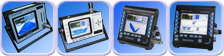
ISONIC XY SCAN (PANELSCAN): C-Scan Compression Wave 0-deg Inspection of the Panels / Tubes Made of Composites, Metals, etc using Linear
Array Probes with the use of
ISONIC 2009 UPA Scope W'7PRO Instruments
ISONIC 2010 W'7PRO Instruments
ISONIC 3510 W'7PRO Instruments
ISONIC 3510T W'10 Instruments
Latest update: 2026-08-18 / SW Version: 1.0.2.4
- Download file ISONIC_PA_XY_Scan_Setup.zip into computer then extract all its contents into a separate folder on the hard disk, for example C:\ISONIC_PA_XY_Scan_Setup
- Run XYScanSetup.exe program located in that folder
Important:To return to the earlier software release download file ISONIC_PA_XY_Scan_Setup_-1.zip and proceed in the same manner
Note: The ISONIC XY SCAN (PANELSCAN) software package may be installed in the PC for the remote control of ISONIC 3510T, ISONIC 3510, ISONIC 2010, ISONIC 2009 UPA Scope
over LAN. The resources of an external PC for the operative indication, data processing, imaging, and acquisition are used by the software. The PC may be running either under Win'7 or Win'8 or Win'10 or Win'11
ISONIC EXPERT DUET / DUET_M: Software Package for the Inspection of
Planar Butt Welds / Circumferential Welds / Longitudinal Welds
with the use of
ISONIC 2009 UPA Scope W'7PRO Instruments
ISONIC 2010 W'7PRO Instruments
ISONIC 3510 W'7PRO Instruments
ISONIC 3510T W'10 Instruments
Organized as 2 X 32:32 / 2 X 16:16 PA and Pair of PA Probes Combining Sector / Linear Scan Pulse Echo Techniques, TOFD Technique, and Pitch-Catch K-Pattern
Technique for the Detection of Transversal Cracks - Strip Chart Recording and True-To-Geometry Imaging
Latest update: 2026-08-13 / SW Version: 1.0.3.7
- Download file ISONIC_EXPERT_DUET_setup.zip into computer then extract all its contents into a separate folder on the hard disk, for example C:\ISONIC_EXPERT_DUET_setup
- Run IDuetSetup.exe program located in that folder
Important:To return to the earlier software release download file ISONIC_EXPERT_DUET_setup_-1.zip and proceed in the same manner
Note: The ISONIC EXPERT DUET / DUET_M software package may be installed in the PC for the remote control of ISONIC 3510T, ISONIC 3510, ISONIC 2010, ISONIC 2009 UPA Scope
over LAN. The resources of an external PC for the operative indication, data processing, imaging, and acquisition are used by the software. The PC may be running either under Win'7 or Win'8 or Win'10 or Win'11
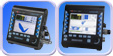
ISONIC EXPERT DUET RAIL: Software Package for the Inspection of Welds in the Railway Rails Using ISONIC 3510 / ISONIC 3510T Instruments and Pair of PA Probes -
Strip Chart Recording and True-To-Geometry Imaging
Latest update: 2026-08-13 / SW Version: 1.0.3.7
- Download file ISONIC_EXPERT_DUET_RAIL_setup.zip into computer then extract all its contents into a separate folder on the hard disk, for example
C:\ISONIC_EXPERT_DUET_RAIL_setup
- Run IDuetRailSetup.exe program located in that folder
Important:To return to the earlier software release download file ISONIC_EXPERT_DUET_setup_-1.zip and proceed in the same manner
Note: The ISONIC EXPERT DUET / DUET_M software package may be installed in the PC for the remote control of ISONIC 3510T, ISONIC 3510
over LAN. The resources of an external PC for the operative indication, data processing, imaging, and acquisition are used by the software. The PC may be running either under Win'7 or Win'8 or Win'10 or Win'11
ISONIC Color Template Creator: Software Utility of for PC and ISONIC 3510T / ISONIC 3510 / ISONIC 2010 / ISONIC 2009 UPA Scope Instruments of All Configurations
- Cusromizing color pallettes the data imaging whilst operating the units in PA modality and at the porstptocessing stage
Latest update: 2016-03-01 / SW Version: 1.0.0.1
- Download file ISONIC_Pallette_Setup.zip into computer then extract all its contents into a separate folder on the hard disk, for example C:\ISONIC Color Template Creator Setup
- Run ISONIC Color Template Creator.exe program located in that folder
Important:To return to the earlier software release download file ISONIC_Pallette_Setup_-1.zip and proceed in the same manner
Note: The ISONIC Color Template Creator software package should be installed in the PC that may be running either under Win'7 or Win'8 or Win'10 or Win'11 and in the ISONIC 2009 UPA Scope / ISONIC 2010 / ISONIC 3510 Instruments of All Configurations

Inspection Software Package: Automatic Inspection of Girth Welds with Multi-Zonal Discrimination and Simultaneous Use of PA, TOFD, and Conventional PE Probes According to ASTM 1961 with ISONIC PA AUT Instrument
Latest update: 2014-10-26 / SW Version: 6.1.0.0
To get upgraded e-mail serial # of your ISONIC PA AUT instrument to support@sonotronndt.com
Note: This software package should be installed in the PC that may be running either under Win'7 or Win'8 or Win'10 or Win'11
Inspection Software Package: ASME 2235 Compatible Automatic / Semi-Automatic Multi-Group Inspection of Welds with Simultaneous Use of PA, TOFD, and Conventional PE Probes with ISONIC PA AUT Instrument
Latest update: 2014-10-26 / SW Version: 2.1.0.2
To get upgraded e-mail serial # of your ISONIC PA AUT instrument to support@sonotronndt.com
Note: This software package should be installed in the PC that may be running either under Win'7 or Win'8 or Win'10 or Win'11
|

ISONIC 3505 Software for W'7PRO instruments
Latest update: 2026-07-19 / SW Version: 1.2.2.30
- Download file ISONIC_3505_Setup.zip into computer then extract all its contents into a separate folder on the hard disk, for example C:\ISONIC3505UPGR
- Copy directory ISONIC3505UPGR and all its contents onto USB Memory stick
- Switch ISONIC 3505 instrument ON
- On receiving ISONIC 3505 start screen click on Exit to Windows
- Insert USB Memory stick into USB port of ISONIC 3505 instrument
- Double Click on Computer icon
- Find icon related to connected memory stick (disk on key) and explore it
- Double click the icon of ISONIC3505PGR folder
- Run I3505Setup.exe program located in that folder
Important:To return to the earlier software release download file ISONIC_3505_Setup_-1.zip and proceed in the same manner
Note: In order to control ISONIC 3505 remotely through LAN using the resources of an external PC for the operative indication, data processing, imaging, and acquisition the same software should be installed in the PC that running either under Win'7 or Win'8 or Win'10 or Win'11. To install software in the PC follow the same rules as for the instrument but upon the setup routine started:
- uncheck the option Start software on system startup
- check the option Install Client Only
- click on the Install button

ISONIC IUT 05 Software (Automatic and Semiautomatic Immersion Ultrasonic Testing) for ISONIC 3505 W'7PRO instruments
Latest update: 2017-12-07 / SW Version: 1.0.0.1
- Download file ISONIC_3505_IUT_Setup.zip into computer then extract all its contents into a separate folder on the hard disk, for example C:\ISONIC3505UPGR
- Copy directory ISONICIUT3505UPGR and all its contents onto USB Memory stick
- Switch ISONIC 3505 instrument ON
- On receiving ISONIC 3505 start screen click on Exit to Windows
- Insert USB Memory stick into USB port of ISONIC 3505 instrument
- Double Click on Computer icon
- Find icon related to connected memory stick (disk on key) and explore it
- Double click the icon of ISONICIUT3505UPGR folder
- Run IUT05Setup.exe program located in that folder
Important:To return to the earlier software release download file ISONIC_3505_IUT_Setup_-1.zip and proceed in the same manner
Note: In order to control ISONIC 3505 remotely through LAN using the resources of an external PC for the operative indication, data processing, imaging, and acquisition the same software
should be installed in the PC that running either under Win'7 or Win'8 or Win'10 or Win'11. To install software in the PC follow the same rules as for the instrument

ISONIC 3507 Software for W'7PRO instruments
Latest update: 2026-07-19 / SW Version: 1.2.2.30
- Download file ISONIC_3507_Setup.zip into computer then extract all its contents into a separate folder on the hard disk, for example C:\ISONIC3507UPGR
- Copy directory ISONIC3507UPGR and all its contents onto USB Memory stick
- Switch ISONIC 3507 instrument ON
- On receiving ISONIC 3507 start screen click on Exit to Windows
- Insert USB Memory stick into USB port of ISONIC 3507 instrument
- Double Click on Computer icon
- Find icon related to connected memory stick (disk on key) and explore it
- Double click the icon of ISONIC3507PGR folder
- Run I3507Setup.exe program located in that folder
Important:To return to the earlier software release download file ISONIC_3507_Setup_-1.zip and proceed in the same manner
Note: In order to control ISONIC 3507 remotely through LAN using the resources of an external PC for the operative indication, data processing, imaging, and acquisition the same software should be installed in the PC that running either under Win'7 or Win'8 or Win'10 or Win'11. To install software in the PC follow the same rules as for the instrument but upon the setup routine started:
- uncheck the option Start software on system startup
- check the option Install Client Only
- click on the Install button

ISONIC IUT 07 Software (Automatic and Semiautomatic Immersion Ultrasonic Testing) for ISONIC 3507 W'7PRO instruments
Latest update: 2017-12-07 / SW Version: 1.0.0.1
- Download file ISONIC_3507_IUT_Setup.zip into computer then extract all its contents into a separate folder on the hard disk, for example C:\ISONIC3505UPGR
- Copy directory ISONICIUT3507UPGR and all its contents onto USB Memory stick
- Switch ISONIC 3507 instrument ON
- On receiving ISONIC 3507 start screen click on Exit to Windows
- Insert USB Memory stick into USB port of ISONIC 3507 instrument
- Double Click on Computer icon
- Find icon related to connected memory stick (disk on key) and explore it
- Double click the icon of ISONICIUT3507UPGR folder
- Run IUT05Setup.exe program located in that folder
Important:To return to the earlier software release download file ISONIC_3507_IUT_Setup_-1.zip and proceed in the same manner
Note: In order to control ISONIC 3507 remotely through LAN using the resources of an external PC for the operative indication, data processing, imaging, and acquisition the same software
should be installed in the PC that running either under Win'7 or Win'8 or Win'10 or Win'11. To install software in the PC follow the same rules as for the instrument

ISONIC 3208 Software for W'7PRO and W'XPEmb instruments
Latest update: 2026-09-03 / SW Version: 9.3.0.31
- Download file ISONIC_3208_Setup.zip into computer then extract all its contents into a separate folder on the hard disk, for example C:\ISONIC3208UPGR
- Copy directory ISONIC3208UPGR and all its contents onto USB Memory stick
- Switch ISONIC 3208 instrument ON
- On receiving ISONIC 3208 start screen click on Exit to Windows
- Insert USB Memory stick into USB port of ISONIC 3208 instrument
- Double Click on Computer icon
- Find icon related to connected memory stick (disk on key) and explore it
- Double click the icon of ISONIC3208UPGR folder
- Run I3208Setup.exe program located in that folder
Important:To return to the earlier software release download file ISONIC_3208_Setup_-1.zip and proceed in the same manner
Note: In order to control ISONIC 3208 remotely through LAN using the resources of an external PC for the operative indication, data processing, imaging, and acquisition the same software should be installed in the PC that running either under Win'7 or Win'8 or Win'10 or Win'11. To install software in the PC follow the same rules as for the instrument but upon the setup routine started:
- uncheck the option Run on Windows startup
- check the option Install Client Only
- click on the Install button

ISONIC utPod for PC Software Package for using with for ISONIC utPod / ISONIC utPod T / ISONIC utPod LF instruments
Latest update: 2024-10-31 / SW Version: 2.9.0.6
- Download file ISONIC_utPod_for_PC.zip into computer then extract all its contents into a separate folder on the hard disk, for example C:\ISONIC_utPod
- Run utPodSetup.exe program located in that folder
Note: The ISONIC utPod for PC software package should be installed in the PC that may be running either under Win'7 or Win'8 or Win'10 or Win'11
ISONIC utPod Firmware Update Package - Revision 1.65 for ISONIC utPod / ISONIC utPod T / ISONIC utPod LF instruments
Latest update: 2024-11-20 / SW Version: 1.65.0.0
|
ISONIC PA Office: Posptprocessing Package For PC for All Types of Phased Array Modality Files Captured by
ISONIC 2009 UPA Scope / ISONIC 2010 / ISONIC 3510 / ISONIC 3510T Instruments of All Configurations
Latest update: 2026-09-06 / SW Version: 5.0.1.38
- Download file ISONIC_PA_Office_Setup.zip into computer then extract all its contents into a separate folder on the hard disk, for example C:\IPAOfficeSetup
- Run IPAOfficeSetup.exe program located in that folder
Important:To return to the earlier software release download file ISONIC_PA_Office_Setup_-1.zip and proceed in the same manner
Note: The ISONIC PA OFFICE software package should be installed in the PC that may be running either under Win'7 or Win'8 or Win'10 or Win'11
ISONIC EXPERT DUET POSTRPOCESSING: Postprocessing Package For PC for the Files Captured by
ISONIC 2009 UPA Scope / ISONIC 2010 / ISONIC 3510 / ISONIC 3510T Instruments while Inspecting the Welds Using ISONIC EXPERT DUET / DUET_M Software Package
ISONIC 3510 / ISONIC 3510T Instruments while Inspecting the Welds in the Railway Rails Using ISONIC EXPERT DUET RAIL Software Package
Latest update: 2026-08-13 / SW Version: 5.0.3.7
- Download file ISONIC_EXPERT_DUET_PP_setup.zip into computer then extract all its contents into a separate folder on the hard disk, for example C:\DUET_PP_Setup
- Run IDuetPPSetup.exe program located in that folder
Important:To return to the earlier software release download file ISONIC_EXPERT_DUET_PP_setup_-1.zip and proceed in the same manner
Note: The ISONIC EXPERT DUET POSPROCESSING software package should be installed in the PC that may be running either under Win'7 or Win'8 or Win'10 or Win'11
ISONIC XY Scan Viewer: Postprocessing Package For PC for the Files Captured by ISONIC 2009 UPA Scope / ISONIC 2010 / ISONIC 3510 / ISONIC 3510T Instruments while Inspecting Panels / Tubes Made of Composites, Metals, etc Using
ISONIC XY SCAN (PANELSCAN) Software Package
Latest update: 2026-08-18 / SW Version: 3.0.2.4
- Download file ISONIC_PA_XY_Scan_Viewer_Setup.zip into computer then extract all its contents into a separate folder on the hard disk, for example C:\ISONIC_PA_XY_Scan_Viewer_Setup
- Run XYScanViewerSetup.exe program located in that folder
Important:To return to the earlier software release download file ISONIC_PA_XY_Scan_Viewer_Setup_-1.zip and proceed in the same manner
Note: The ISONIC XY Scan Viewer software package should be installed in the PC that may be running either under Win'7 or Win'8 or Win'10 or Win'11
ISONIC PA ABI PUZZLE: ISONIC PA ABIScan Puzzle: composing PUZZLE file comprising raw data from several ABIScan based top view scanning files captured by ISONIC 2009 UPA Scope / ISONIC 2010 / ISONIC 3510 / ISONIC 3510T Instruments
Latest update: 2026-08-13 / SW Version: 3.0.1.5
- Download file ISONIC_PA_ABI_Puzzle_Setup.zip into computer then extract all its contents into a separate folder on the hard disk, for example C:\ISONIC_PA_ABI_Puzzle_Setup
- Run ABIPuzzleSetup.exe program located in that folder
Important:To return to the earlier software release download file ISONIC_PA_ABI_Puzzle_Setup_-1.zip and proceed in the same manner
Note: The ISONIC PA ABIScan software package should be installed in the PC that may be running either under Win'7 or Win'8 or Win'10 or Win'11
ISONIC PA W_PUZZLE: Posptprocessing Package For PC for Phased Array Weld Inspection Files Captured by ISONIC 2009 UPA Scope / ISONIC 2010 / ISONIC 3510 / ISONIC 3510T Instruments using EXPERT, EXPERT CU, VLFS, VLFS CU SW Packages
Latest update: 2026-08-13 / SW Version: 2.0.1.4
- Download file ISONIC_W_PUZZLE_SETUP.zip into computer then extract all its contents into a separate folder on the hard disk, for example C:\ISONIC_W_PUZZLE_SETUP
- Run IWPuzzleSetup.exe program located in that folder
Important:To return to the earlier software release download file ISONIC_W_PUZZLE_SETUP_-1.zip and proceed in the same manner
Note: The ISONIC W_PUZZLE software package should be installed in the PC that may be running either under Win'7 or Win'8 or Win'10 or Win'11
ISONIC OFFICE 35 (IOFFICE 35): Posptprocessing Package For PC for the Inspection Results Files Captured by ISONIC 3505 / ISONIC 3507 Instruments
Latest update: 2026-08-24 / SW Version: 1.2.2.31
- Download file IOFFICE_35_SETUP.zip into computer then extract all its contents into a separate folder on the hard disk, for example C:\IOFFICE_35_SETUP
- Run IOffice35Setup.exe program located in that folder
Important:To return to the earlier software release download file IOFFICE_35_SETUP_-1.zip and proceed in the same manner
Note: The IOFFICE 35 software package should be installed in the PC that may be running either under Win'7 or Win'8 or Win'10 or Win'11
ISONIC AVTScan PP: Posptprocessing Package For PC for AVTScan Files Captured by ISONIC 2008 / ISONIC 2010 Instruments using ISONIC AVTScan Inspection SW Package
Latest update: 2013-04-08 / SW Version: 1.0.0.2
- Download file ISONIC_AVTScan_PP_Setup.zip into computer then extract all its contents into a separate folder on the hard disk, for example C:\ISONIC_AVTScan_PP_SETUP
- Run AVTPPSetup.exe program located in that folder
Note: The ISONIC AVTScan_PP software package should be installed in the PC that may be running either under Win'7 or Win'8 or Win'10 or Win'11

IOFFICE 2005 - ISONIC OFFICE 2005: Posptprocessing Package For PC for the Files of All Types Captured by ISONIC 2005 / ISONIC 2020 / ISONIC STAR Instruments
Latest update: 2016-01-28 / SW Version: 2.1.0.5
- Download file IOFFICE_2005_SETUP.zip into computer then extract all its contents into a separate folder on the hard disk, for example C:\IOFFICE_2005_SETUP
- Run IOffice2005Setup.exe program located in that folder
Important:To return to the earlier software release download file IOFFICE_2005_SETUP_-1.zip and proceed in the same manner
Note: The ISONIC OFFICE 2005 software package should be installed in the PC that may be running either under Win'7 or Win'8 or Win'10 or Win'11

IOFFICE / IOFFICE L - ISONIC OFFICE / ISONIC OFFICE L: Posptprocessing Packages For PC for the Files of All Types Captured by ISONIC 2005 / ISONIC 2020 /
ISONIC STAR / ISONIC 2006 / ISONIC 2006 NP / ISONIC 2007 / ISONIC 2008 / ISONIC 3208 and Conventional Channels of ISONIC 2009 UPA Scope / ISONIC 2010 / ISONIC 3510 / ISONIC 3510T Instruments
Latest update: 2016-11-03 / SW Version: 2.1.1.6
- Download file IOFFICE_SETUP.zip into computer then extract all its contents into a separate folder on the hard disk, for example C:\IOFFICE_SETUP
- Run IOfficeSetup.exe program located in that folder - this will install both SW packages IOFFICE and IOFFICE L simultaneously
Important:To return to the earlier software release download file IOFFICE_SETUP_-1.zip and proceed in the same manner
Note: The ISONIC OFFICE / ISONIC OFFICE L software packages should be installed in the PC that may be running either under Win'7 or Win'8 or Win'10 or Win'11
Posptprocessing Package (Viewer) For PC for Files Captured by ISONIC PA AUT Instrument During Automatic Inspection of Girth Welds with Multi-Zonal Discrimination and Simultaneous Use of PA, TOFD, and Conventional PE Probes According to ASTM 1961
Latest update: 2013-11-24 / SW Version: 6.1.0.1
- Download file Postprocessing.zip into computer then extract all its contents into a separate folder on the hard disk, for example C:\ISONIC_PA_AUT_MZONE_PP_Setup
- Run PAMZPPSetup.exe program located in that folder
Note: This software package should be installed in the PC that may be running either under Win'7 or Win'8 or Win'10 or Win'11
Posptprocessing Package (Viewer) For PC for Files Captured by ISONIC PA AUT Instrument During Automatic Inspection of Girth Welds with Multi-Zonal Discrimination and Simultaneous Use of PA, TOFD, and Conventional PE Probes According to ASTM 1961 Using Inspection Software Package Issued Before November 3, 2013
Latest update: 2011-10-02 / SW Version: 1.4.0.1
- Download file Postprocessing_OLD.zip into computer then extract all its contents into a separate folder on the hard disk, for example C:\ISONIC_PA_AUT_MZONE_PP_Setup
- Run PAPPSetup.exe program located in that folder
Note: This software package should be installed in the PC that may be running either under Win'7 or Win'8 or Win'10 or Win'11
Posptprocessing Package (Viewer) For PC for Files Captured by ISONIC PA AUT Instrument During ASME 2235 Compatible Automatic / Semi-Automatic Multi-Group Inspection of Welds with Simultaneous Use of PA, TOFD, and Conventional PE Probes
Latest update: 2014-01-05 / SW Version: 1.5.0.3
- Download file Postprocessing.zip into computer then extract all its contents into a separate folder on the hard disk, for example C:\ISONIC_PA_AUT_MGROUP_PP_Setup
- Run PAMGPPSetup.exe program located in that folder
Note: This software package should be installed in the PC that may be running either under Win'7 or Win'8 or Win'10 or Win'11
|
ISONIC 2005 Software for Windows 98SE instruments
Latest update: 2009-08-25 / SW Version: 7.1.0.38
- Download file ISONIC_2005_setup.zip into computer then extract all its contents into a separate folder on the hard disk, for example C:\ISONIC2005UPGR
- Copy directory ISONIC2005UPGR and all its contents onto USB Memory stick
- Switch ISONIC 2005 instrument ON
- On receiving ISONIC 2005 start screen click on Exit to Windows
- Insert USB Memory stick into USB port of ISONIC 2005 instrument
- Double Click on Computer icon
- Find icon related to connected memory stick (disk on key) and explore it
- Double click the icon of ISONIC2005UPGR folder
- Run setup.exe program located in that folder
ISONIC 2005 Software for W'XPEmb instruments
Latest update: 2016-01-07 / SW Version: 9.1.0.9
- Download file ISONIC_2005_XP_EMB_setup.zip into computer then extract all its contents into a separate folder on the hard disk, for example C:\ISONIC2005UPGR
- Copy directory ISONIC2005UPGR and all its contents onto USB Memory stick
- Switch ISONIC 2005 instrument ON
- On receiving ISONIC 2005 start screen click on Exit to Windows
- Insert USB Memory stick into USB port of ISONIC 2005 instrument
- Double Click on Computer icon
- Find icon related to connected memory stick (disk on key) and explore it
- Double click the icon of ISONIC2005UPGR folder
- Run I2005Setup.exe program located in that folder
Note: In order to control ISONIC 2005 remotely through LAN using the resources of an external PC for the operative indication, data processing, imaging, and acquisition the same software should be installed in the PC that running either under Win'7 or Win'8 or Win'10 or Win'11. To install software in the PC follow the same rules as for the instrument but upon the setup routine started:
- uncheck the option Start software on system startup
- check the option Install Client Only
- click on the Install button
ISONIC 2020 Software for W'XPEmb instruments
Latest update: 2016-01-07 / SW Version: 9.1.0.9
- Download file ISONIC_2020_SETUP.zip into computer then extract all its contents into a separate folder on the hard disk, for example C:\ISONIC2005UPGR
- Copy directory ISONIC2020UPGR and all its contents onto USB Memory stick
- Switch ISONIC 2020 instrument ON
- On receiving ISONIC 2020 start screen click on Exit to Windows
- Insert USB Memory stick into USB port of ISONIC 2020 instrument
- Double Click on Computer icon
- Find icon related to connected memory stick (disk on key) and explore it
- Double click the icon of ISONIC2020UPGR folder
- Run I2020Setup.exe program located in that folder
Note: In order to control ISONIC 2020 remotely through LAN using the resources of an external PC for the operative indication, data processing, imaging, and acquisition the same software should be installed in the PC that running either under Win'7 or Win'8 or Win'10 or Win'11. To install software in the PC follow the same rules as for the instrument but upon the setup routine started:
- uncheck the option Start software on system startup
- check the option Install Client Only
- click on the Install button
ISONIC STAR Software for W'XPEmb instruments
Latest update: 2016-01-07 / SW Version: 9.1.0.9
- Download file ISONIC_STAR_SETUP.zip into computer then extract all its contents into a separate folder on the hard disk, for example C:\ISONIC2005UPGR
- Copy directory ISONICSTARUPGR and all its contents onto USB Memory stick
- Switch ISONIC STAR instrument ON
- On receiving ISONIC STAR start screen click on Exit to Windows
- Insert USB Memory stick into USB port of ISONIC STAR instrument
- Double Click on Computer icon
- Find icon related to connected memory stick (disk on key) and explore it
- Double click the icon of ISONICSTARUPGR folder
- Run IStarSetup.exe program located in that folder
Note: In order to control ISONIC STAR remotely through LAN using the resources of an external PC for the operative indication, data processing, imaging, and acquisition the same software should be installed in the PC that running either under Win'7 or Win'8 or Win'10 or Win'11. To install software in the PC follow the same rules as for the instrument but upon the setup routine started:
- uncheck the option Start software on system startup
- check the option Install Client Only
- click on the Install button

ISONIC 2006 Software for Windows 98SE instruments
Latest update: 2011-12-04 / SW Version: 8.0.0.61
- Download file ISONIC_2006_setup.zip into computer then extract all its contents into a separate folder on the hard disk, for example C:\ISONIC2006UPGR
- Download file ISONIC_2006_PATCH_2010_05_23.zip into the same folder then extract file 2006_PATCH_2010_05_23.ex_ and renaime it
to 2006_PATCH_2010_05_23.exe
- Copy directory ISONIC2006UPGR and all its contents onto USB Memory stick
- Switch ISONIC 2006 instrument ON
- On receiving ISONIC 2006 start screen click on Exit to Windows
- Insert USB Memory stick into USB port of ISONIC 2006 instrument
- Double Click on Computer icon
- Find icon related to connected memory stick (disk on key) and explore it
- Double click the icon of ISONIC2006UPGR folder
- Run setup.exe program located in that folder
- Run 2006_PATCH_2010_05_23.exe program located in that folder
ISONIC 2006 Software for W'XPEmb instruments
Latest update: 2011-12-04 / SW Version: 8.0.0.61
- Download file ISONIC_2006_setup.zip into computer then extract all its contents into a separate folder on the hard disk, for example C:\ISONIC2006UPGR
- Copy directory ISONIC2006UPGR and all its contents onto USB Memory stick
- Switch ISONIC 2006 instrument ON
- On receiving ISONIC 2006 start screen click on Exit to Windows
- Insert USB Memory stick into USB port of ISONIC 2006 instrument
- Double Click on Computer icon
- Find icon related to connected memory stick (disk on key) and explore it
- Double click the icon of ISONIC2006UPGR folder
- Run setup.exe program located in that folder
ISONIC 2006 NP (New Platform) Software for W'XPEmb instruments
Latest update: 2016-06-27 / SW Version: 6.0.0.3
- Download file ISONIC_2006_NP_SETUP.ZIP into computer then extract all its contents into a separate folder on the hard disk, for example C:\ISONIC2006UPGR
- Copy directory ISONIC2006UPGR and all its contents onto USB Memory stick
- Switch ISONIC 2006 instrument ON
- On receiving ISONIC 2006 start screen click on Exit to Windows
- Insert USB Memory stick into USB port of ISONIC 2006 instrument
- Double Click on Computer icon
- Find icon related to connected memory stick (disk on key) and explore it
- Double click the icon of ISONIC2006UPGR folder
- Run I2006Setup.exe program located in that folder
Note: In order to control ISONIC 2006 remotely through LAN using the resources of an external PC for the operative indication, data processing, imaging, and acquisition the same software should be installed in the PC that running either under Win'7 or Win'8 or Win'10 or Win'11. To install software in the PC follow the same rules as for the instrument but upon the setup routine started:
- uncheck the option Start software on system startup
- check the option Install Client Only
- click on the Install button

ISONIC 2007 Software for Windows 98SE instruments
Latest update: 2009-08-25 / SW Version: 8.00.0026
- Download file ISONIC_2007_setup.zip into computer then extract all its contents into a separate folder on the hard disk, for example C:\ISONIC2007UPGR
- Copy directory ISONIC2007UPGR and all its contents onto USB Memory stick
- Switch ISONIC 2007 instrument ON
- On receiving ISONIC 2007 start screen click on Exit to Windows
- Insert USB Memory stick into USB port of ISONIC 2007 instrument
- Double Click on Computer icon
- Find icon related to connected memory stick (disk on key) and explore it
- Double click the icon of ISONIC2007UPGR folder
- Run setup.exe program located in that folder
ISONIC 2007 Software for W'XPEmb instruments
Latest update: 2016-01-28 / SW Version: 8.1.0.5
- Download file ISONIC_2007_XP_EMB_setup.zip into computer then extract all its contents into a separate folder on the hard disk, for example C:\ISONIC2007UPGR
- Copy directory ISONIC2007UPGR and all its contents onto USB Memory stick
- Switch ISONIC 2007 instrument ON
- On receiving ISONIC 2007 start screen click on Exit to Windows
- Insert USB Memory stick into USB port of ISONIC 2007 instrument
- Double Click on Computer icon
- Find icon related to connected memory stick (disk on key) and explore it
- Double click the icon of ISONIC2007UPGR folder
- Run I2007Setup.exe program located in that folder
Note: In order to control ISONIC 2007 remotely through LAN using the resources of an external PC for the operative indication, data processing, imaging, and acquisition the same software should be installed in the PC that running either under Win'7 or Win'8 or Win'10 or Win'11. To install software in the PC follow the same rules as for the instrument but upon the setup routine started:
- uncheck the option Start software on system startup
- check the option Install Client Only
- click on the Install button

ISONIC 2008 Software for W'7PRO and W'XPEmb instruments
Latest update: 2021-05-24 / SW Version: 9.3.0.29
- Download file ISONIC_2008_setup.zip into computer then extract all its contents into a separate folder on the hard disk, for example C:\ISONIC2008UPGR
- Copy directory ISONIC2008UPGR and all its contents onto USB Memory stick
- Switch ISONIC 2008 instrument ON
- On receiving ISONIC 2008 start screen click on Exit to Windows
- Insert USB Memory stick into USB port of ISONIC 2008 instrument
- Double Click on Computer icon
- Find icon related to connected memory stick (disk on key) and explore it
- Double click the icon of ISONIC2008UPGR folder
- Run I2008Setup.exe program located in that folder
Important:To return to the earlier software release download file ISONIC_2008_setup_-1.zip and proceed in the same manner
Note: In order to control ISONIC 2008 remotely through LAN using the resources of an external PC for the operative indication, data processing, imaging, and acquisition the same software should be installed in the PC that running either under Win'7 or Win'8 or Win'10 or Win'11. To install software in the PC follow the same rules as for the instrument but upon the setup routine started:
- uncheck the option Run on Windows startup
- check the option Install Client Only
- click on the Install button
ISONIC AVTScan - Material Thickness Measurement and Recording Based on Automatic Determining of Ultrasound Velocity: Optional Inspection
Software for ISONIC 2008/2, ISONIC 2008/4, ISONIC 2008 instruments and for ISONIC 2010 Phased Array instruments carrying 2 Conventional Channels
Latest update: 2013-04-08 / SW Version: 1.0.0.2
- Download file ISONIC_AVTScan_Setup.zip into computer then extract all its contents into a separate folder on the hard disk, for example C:\ISONIC_AVTScan
- Copy directory ISONIC_AVTScan and all its contents onto USB Memory stick
- Switch ISONIC 2008 / 2010 instrument ON
- On receiving ISONIC 2008 / 2010 start screen click on Exit to Windows
- Insert USB Memory stick into USB port of ISONIC 2008 / 2010 instrument
- Double Click on Computer icon
- Find icon related to connected memory stick (disk on key) and explore it
- Double click the icon of ISONIC_AVTScan folder
- Run AVTSetup.exe program located in that folder
Note: the instrument card should have the special code burned in in order to run this application
ISONIC 2009 UPA Scope Software for W'XPEmb Instruments 1 X 64:64 / 2 X 32:32 Phased Array and 8 Conventional Channels
Latest update: 2022-12-27 / SW Version: 5.0.0.145
- Download file ISONIC_2009_8_setup.zip into computer then extract all its contents into a separate folder on the hard disk, for example C:\ISONIC2009UPGR
- Copy directory ISONIC2009UPGR and all its contents onto USB Memory stick
- Switch ISONIC 2009 instrument ON
- On receiving ISONIC 2009 start screen click on Exit to Windows
- Insert USB Memory stick into USB port of ISONIC 2009 instrument
- Double Click on Computer icon
- Find icon related to connected memory stick (disk on key) and explore it
- Double click the icon of ISONIC2009UPGR folder
- Run I2009Setup.exe program located in that folder
Note: In order to control ISONIC 2009 UPA Scope remotely through LAN using the resources of an external PC for the operative indication, data processing, imaging, and acquisition the same software should be installed in the PC that running either under Win'7 or Win'8 or Win'10 or Win'11. To install software in the PC follow the same rules as for the instrument but upon the setup routine started:
- uncheck the option Run on Windows startup
- check the option Install Client Only
- click on the Install button
ISONIC 2009 UPA Scope Software for W'XPEmb Instruments 1 X 64:64 / 2 X 32:32 Phased Array and 1 Conventional Channel
Latest update: 2022-12-27 / SW Version: 5.0.0.145
- Download file ISONIC_2009_1_setup.zip into computer then extract all its contents into a separate folder on the hard disk, for example C:\ISONIC2009UPGR
- Copy directory ISONIC2009UPGR and all its contents onto USB Memory stick
- Switch ISONIC 2009 instrument ON
- On receiving ISONIC 2009 start screen click on Exit to Windows
- Insert USB Memory stick into USB port of ISONIC 2009 instrument
- Double Click on Computer icon
- Find icon related to connected memory stick (disk on key) and explore it
- Double click the icon of ISONIC2009UPGR folder
- Run I2009Setup.exe program located in that folder
Note: In order to control ISONIC 2009 UPA Scope remotely through LAN using the resources of an external PC for the operative indication, data processing, imaging, and acquisition the same software should be installed in the PC that running either under Win'7 or Win'8 or Win'10 or Win'11. To install software in the PC follow the same rules as for the instrument but upon the setup routine started:
- uncheck the option Run on Windows startup
- check the option Install Client Only
- click on the Install button
ISONIC 2010 Software for W'XPEmb Instruments 1 X 32:32 / 2 X 16:16 Phased Array and 1 Conventional Channel
Latest update: 2022-12-27 / SW Version: 4.0.0.145
- Download file ISONIC_2010_SETUP.zip into computer then extract all its contents into a separate folder on the hard disk, for example C:\ISONIC2010UPGR
- Copy directory ISONIC2010UPGR and all its contents onto USB Memory stick
- Switch ISONIC 2010 instrument ON
- On receiving ISONIC 2010 start screen click on Exit to Windows
- Insert USB Memory stick into USB port of ISONIC 2010 instrument
- Double Click on Computer icon
- Find icon related to connected memory stick (disk on key) and explore it
- Double click the icon of ISONIC2010UPGR folder
- Run I2010Setup.exe program located in that folder
Note: In order to control ISONIC 2010 remotely through LAN using the resources of an external PC for the operative indication, data processing, imaging, and acquisition the same software should be installed in the PC that running either under Win'7 or Win'8 or Win'10 or Win'11. To install software in the PC follow the same rules as for the instrument but upon the setup routine started:
- uncheck the option Run on Windows startup
- check the option Install Client Only
- click on the Install button
ISONIC 2010 Software for W'XPEmb Instruments 1 X 32:32 / 2 X 16:16 Phased Array and 2 Conventional Channels
Latest update: 2022-12-27 / SW Version: 4.0.0.145
- Download file ISONIC_2010_SETUP.zip into computer then extract all its contents into a separate folder on the hard disk, for example C:\ISONIC2010UPGR
- Copy directory ISONIC2010UPGR and all its contents onto USB Memory stick
- Switch ISONIC 2010 instrument ON
- On receiving ISONIC 2010 start screen click on Exit to Windows
- Insert USB Memory stick into USB port of ISONIC 2010 instrument
- Double Click on Computer icon
- Find icon related to connected memory stick (disk on key) and explore it
- Double click the icon of ISONIC2010UPGR folder
- Run I2010Setup.exe program located in that folder
Note: In order to control ISONIC 2010 remotely through LAN using the resources of an external PC for the operative indication, data processing, imaging, and acquisition the same software should be installed in the PC that running either under Win'7 or Win'8 or Win'10 or Win'11. To install software in the PC follow the same rules as for the instrument but upon the setup routine started:
- uncheck the option Run on Windows startup
- check the option Install Client Only
- click on the Install button
ISONIC 2010 EL Software for W'XPEmb Instruments 1 X 16:16 Phased Array and 1 Conventional Channel
Latest update: 2022-12-27 / SW Version: 4.0.0.145
- Download file ISONIC_2010_EL_16_CH_SETUP.zip into computer then extract all its contents into a separate folder on the hard disk, for example C:\ISONIC2010_EL_UPGR
- Copy directory ISONIC2010_EL_UPGR and all its contents onto USB Memory stick
- Switch ISONIC 2010 EL instrument ON
- On receiving ISONIC 2010 EL start screen click on Exit to Windows
- Insert USB Memory stick into USB port of ISONIC 2010 EL instrument
- Double Click on Computer icon
- Find icon related to connected memory stick (disk on key) and explore it
- Double click the icon of ISONIC2010_EL_UPGR folder
- Run I2010Setup.exe program located in that folder
Note: In order to control ISONIC 2010 EL remotely through LAN using the resources of an external PC for the operative indication, data processing, imaging, and acquisition the same software should be installed in the PC that running either under Win'7 or Win'8 or Win'10 or Win'11. To install software in the PC follow the same rules as for the instrument but upon the setup routine started:
- uncheck the option Run on Windows startup
- check the option Install Client Only
- click on the Install button
ISONIC XY SCAN (PANELSCAN): C-Scan Compression Wave 0-deg Inspection of the Panels / Tubes Made of Composites, Metals, etc using Linear
Array Probes with the use of
ISONIC 2009 UPA Scope W'XPEmb Instruments
ISONIC 2010 W'XPEmb Instruments
Latest update: 2022-12-15 / SW Version: 1.0.0.36
- Download file ISONIC_PA_XY_Scan_Setup.zip into computer then extract all its contents into a separate folder on the hard disk, for example C:\ISONIC_PA_XY_Scan_Setup
- Run XYScanSetup.exe program located in that folder
Note: The ISONIC XY SCAN (PANELSCAN) software package may be installed in the PC for the remote control of ISONIC 3510T, ISONIC 3510, ISONIC 2010, ISONIC 2009 UPA Scope
over LAN. The resources of an external PC for the operative indication, data processing, imaging, and acquisition are used by the software. The PC may be running either under Win'7 or Win'8 or Win'10 or Win'11
ISONIC EXPERT DUET / DUET_M: Software Package for the Inspection of
Planar Butt Welds / Circumferential Welds / Longitudinal Welds
with the use of
ISONIC 2009 UPA Scope W'XPEmb Instruments
ISONIC 2010 W'XPEmb Instruments
Organized as 2 X 32:32 / 2 X 16:16 PA and Pair of PA Probes Combining Sector / Linear Scan Pulse Echo Techniques, TOFD Technique, and Pitch-Catch K-Pattern
Technique for the Detection of Transversal Cracks - Strip Chart Recording and True-To-Geometry Imaging
Latest update: 2022-12-18 / SW Version: 1.0.1.46
- Download file ISONIC_EXPERT_DUET_setup.zip into computer then extract all its contents into a separate folder on the hard disk, for example C:\ISONIC_EXPERT_DUET_setup
- Run IDuetSetup.exe program located in that folder
Note: The ISONIC EXPERT DUET / DUET_M software package may be installed in the PC for the remote control of ISONIC 3510T, ISONIC 3510, ISONIC 2010, ISONIC 2009 UPA Scope
over LAN. The resources of an external PC for the operative indication, data processing, imaging, and acquisition are used by the software. The PC may be running either under Win'7 or Win'8 or Win'10 or Win'11
|
|